Introduction to R and RStudio
R and RStudio
R is a programming language most commonly used for data wrangling and statistical analysis. As with other statistical programming languages, the primary task with R is to write and run code.
We usually interact with R through a interface. The most popular is RStudio, but other options include VS Code and Jupyter Notebook. The purpose of these interfaces is to provide places for us to write and run code, manage code we have already written, view output and plots, and read help files.
Since R and RStudio are separate pieces of software, you need to download and update them separately. You should update R at least once per year from CRAN. You can update R by downloading and installing a new version.
Updating RStudio is less important but newer versions tend to provide more features. Update RStudio through the Help - Check for Updates menu within RStudio.
How to Use this Book
The purpose of this book is to provide an introduction to the RStudio interface and the basic elements of the R language. It is written for individuals who have no prior programming experience, and also for those who are coming to R after first learning a different language such as Stata or Python.
You should work straight through this book and complete all of the exercises.
The first half of this book will introduce you to the RStudio interface. You will learn the basics of navigating RStudio, including:
- Where to write code
- How to run code
- Where to find output
- How to save code and output
In the second half, we will learn more about the R language itself, including:
- The rules and terminology of the R language
- How to find out what functions do
- How to control how functions behave
- Extending R by installing packages
This book is frequently taught as a four-hour workshop. Register here.
If you are working through this book on your own, you should run all the examples and complete all the exercises.
Setting up RStudio
After you have installed both R (download here) and RStudio (download here), we recommend changing a few of the default settings.
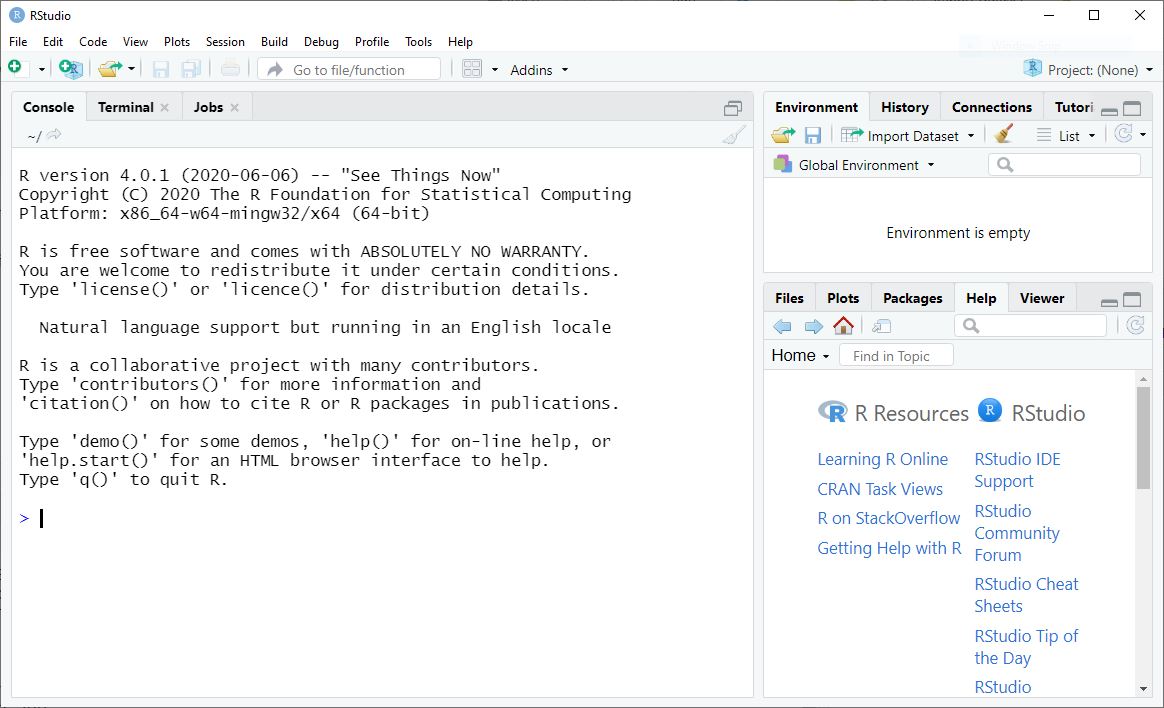
Open the Tools menu and select Global Options.
In the General tab, under Workspace,
- Uncheck “Restore. RData into workspace at startup” and
- Change the option after “Save workspace to .Rdata on exit” to “Never.” These two settings will help you achieve reproducibility where you do not have hidden dependencies between R sessions.
In the Code tab, click on “Display” at the top and then check the option “Soft-wrap R source files.” If you write long lines of R code, this will wrap the text so you do not have to scroll horizontally to see your code.
In the Appearance tab, customize your R theme to your liking. (Hello, dark mode!)
The examples in these materials were run with R version 4.5.3. To ensure that the examples run properly on your computer, be sure to update your R to at least this version.